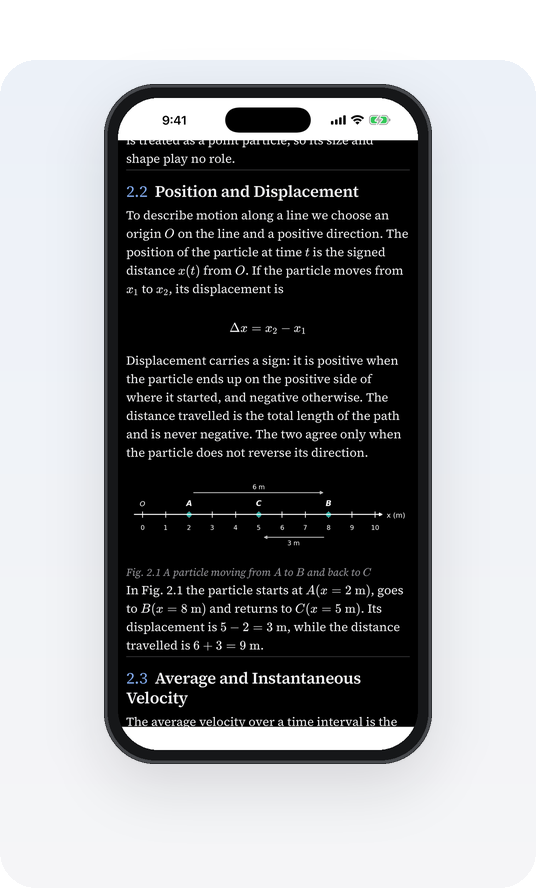
ChapterKit turns a scanned chapter of your own textbook into a chapter you can read, search, select from and print — questions paired with the book’s answers, every exercise linked to its answer and worked solution, formulas typeset instead of photographed. The website is for uploading; everything else happens in the free app.
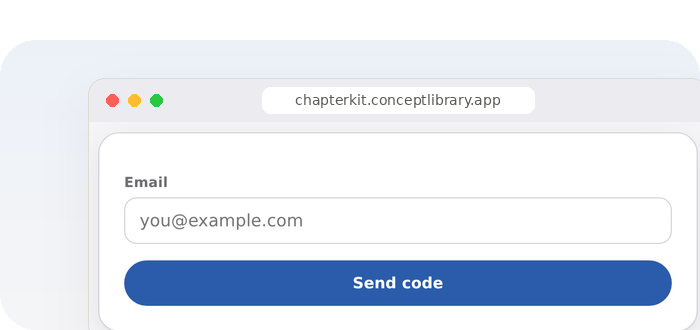
On the home page, enter your email address and tap Send code. A six-digit code arrives by email within a minute; type it in. There is no password — the code is your sign-in every time, here and in the app.
No code? Check the spam folder, and wait a minute before asking for a new one. A code is valid for 10 minutes.
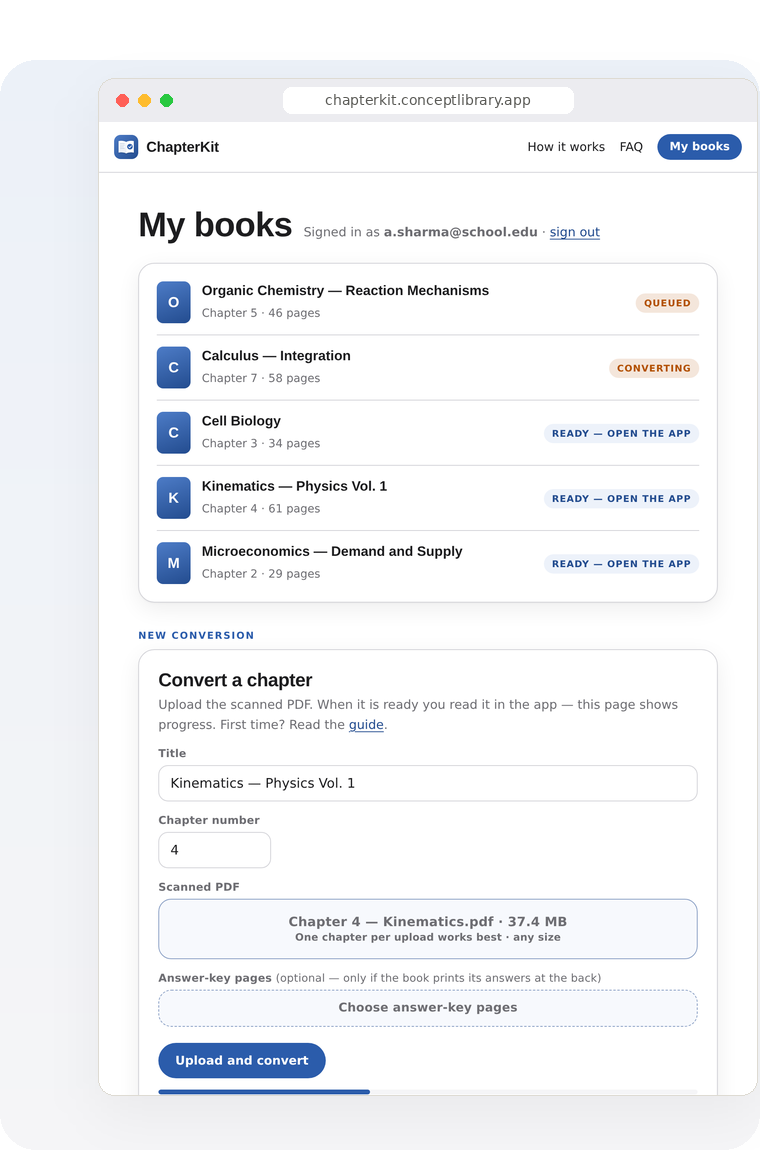
The page shows Queued → Converting → Ready. You can close it; the book appears in the app on its own when it is ready.
Scan tips: 300 dpi or clear phone scans, whole pages (not cropped columns), in reading order, evenly lit.
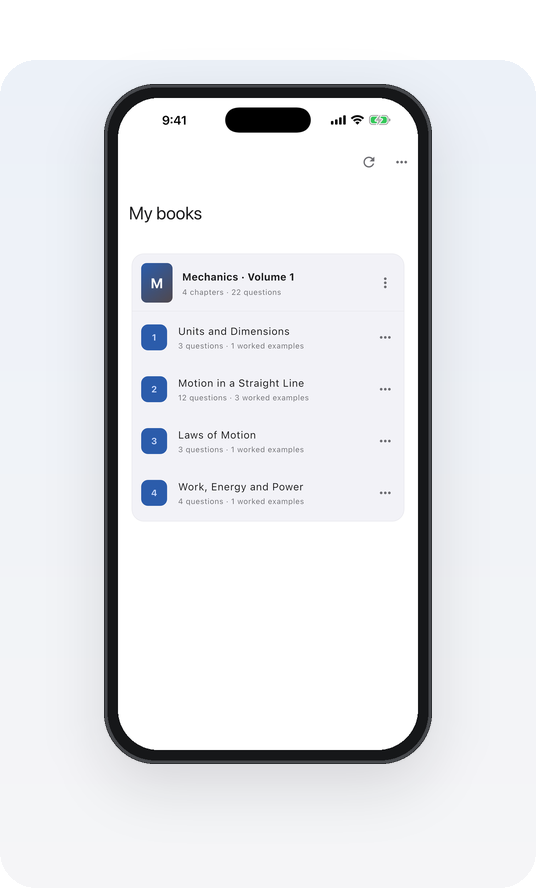
Get ChapterKit from the App Store (Android is coming soon) and sign in with the same email. Your ready chapters download automatically, stored encrypted on this phone. Pull down on My books to check for new ones.
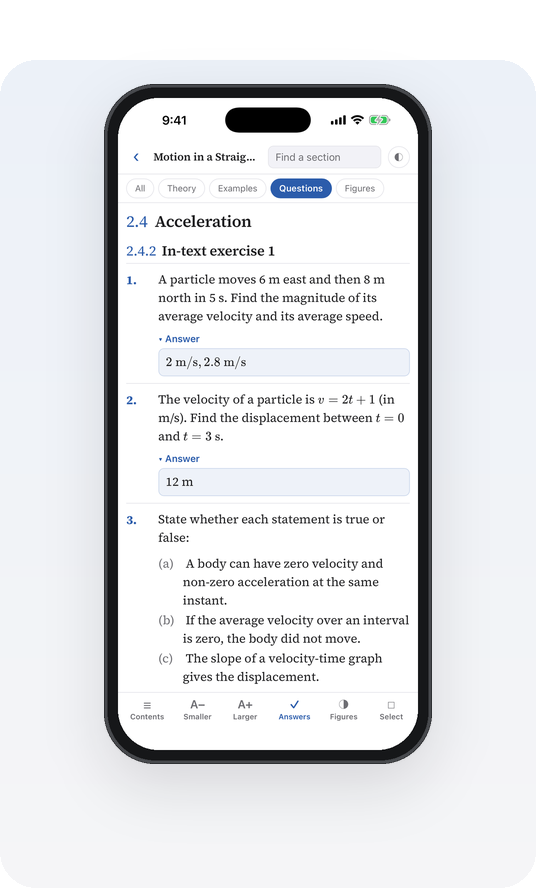
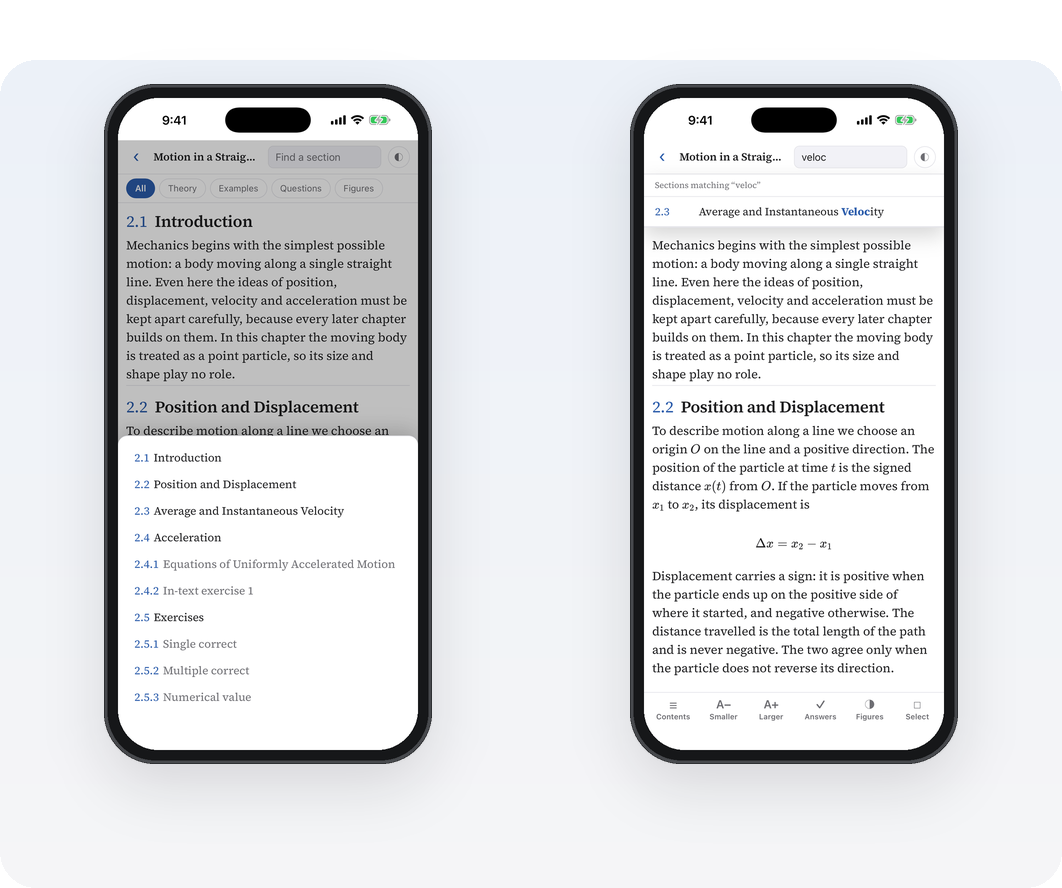
☰ Contents lists every section and subsection — tap one to jump there. Or type a few letters in Find a section at the top: matching section titles are listed as you type.
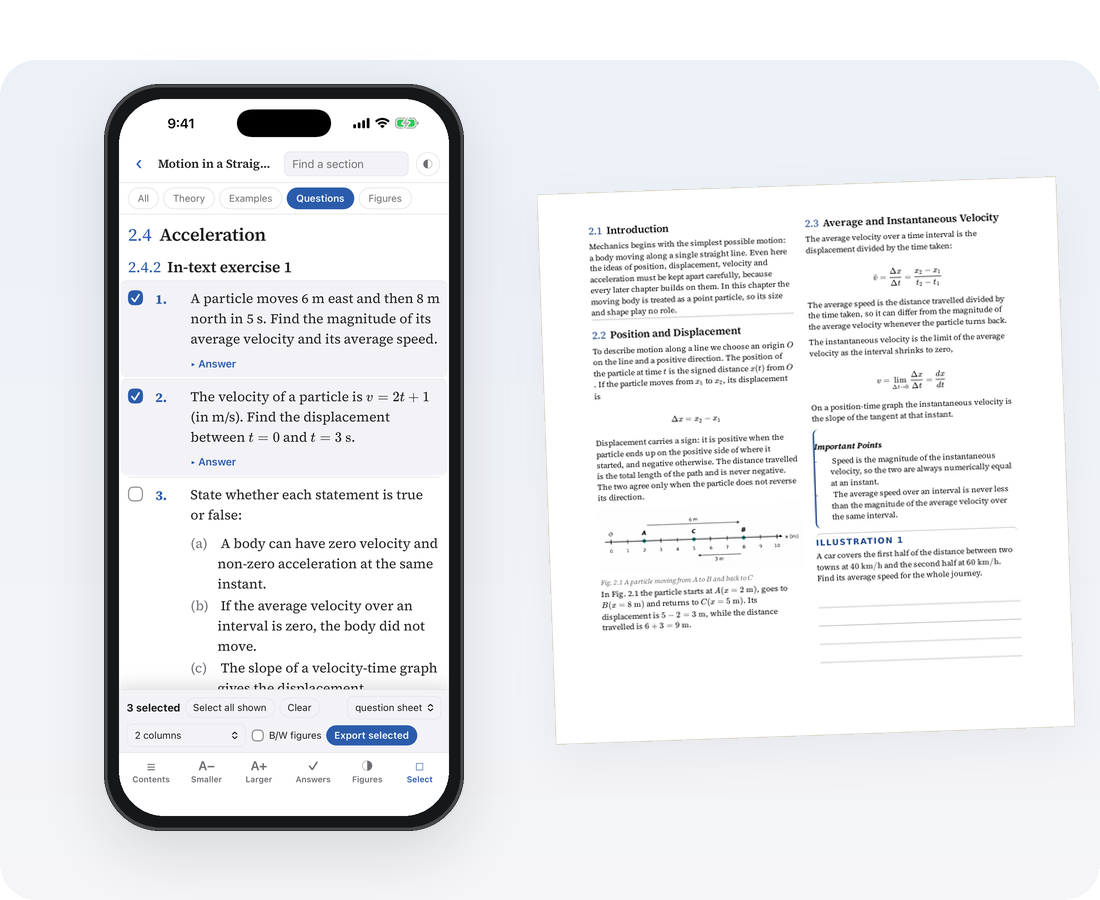
Selected theory prints under its section headings; questions print clean, without headings.
Make a question paper: in Select mode tap Question paper…. Give it a title, time, marks and instructions, then use My selection or Random — choose how many single-correct, multiple-correct, numerical, comprehension, in-text or worked-example questions you want. Tap New random set for a different paper. The paper is numbered 1, 2, 3…, grouped into sections if you like, with an answer key at the end or as a separate PDF (full solutions too) — and it carries no book numbers, headings or book name. Every paper you make stays under Recent papers in that panel, so you can print its paper, key or solutions again later.
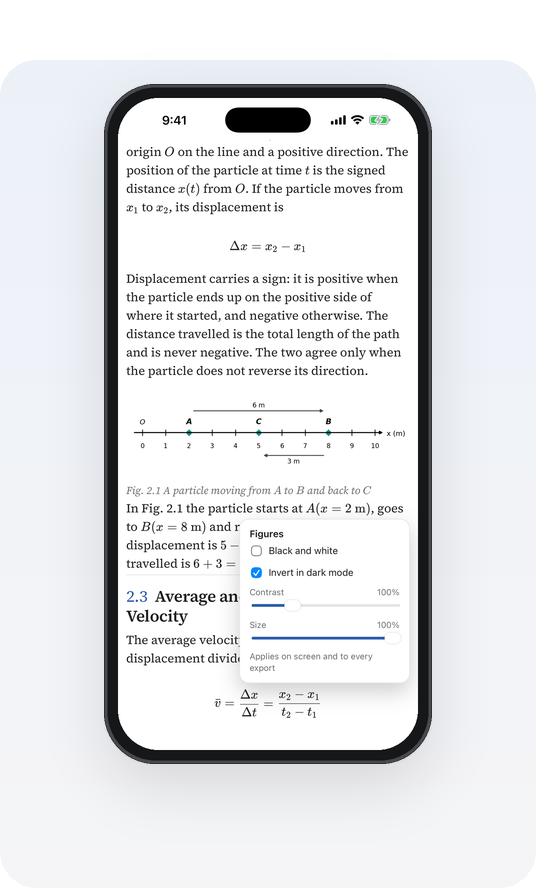
Tap ◑ Figures. Black and white turns every figure grey; Contrast brings out faint scans; Size shrinks figures that take too much space. The setting applies on screen and to everything you export. Invert in dark mode decides whether diagrams turn dark with the page.
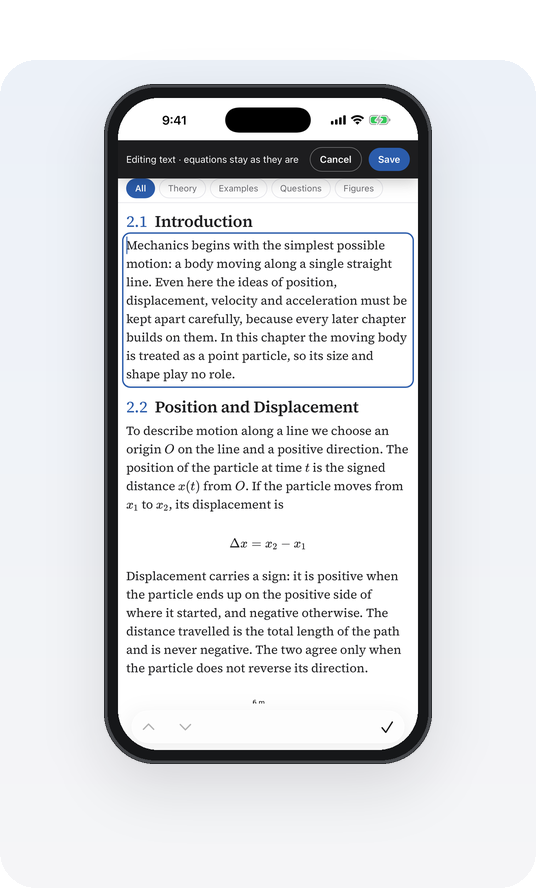
Text: press and hold a paragraph or question → Edit text. Fix a missing space or a word, then Save. Equations are locked, so they cannot be damaged by accident. Undo my text edits here restores the original.
Figures: tap a figure → Correct figure. The original scanned page opens; drag a box around the right diagram and tap Use. You can also insert a missing figure after any paragraph, remove one, or go back to the original.
Corrections are saved to your account: they stay with the book when you move it to another device, and they go into every sheet you export.
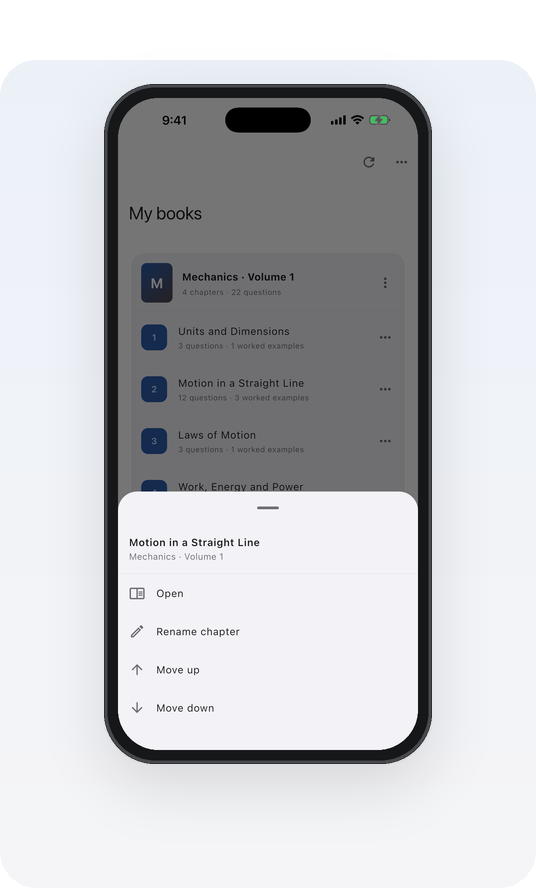
Press and hold a chapter (or tap ⋯) to rename it, move it up or down, or move it into another book. Press and hold a book’s title to rename it or change its place. This arrangement is kept on your phone.
Your books open on one device — an iPhone or an iPad — at a time; signing in on another device moves them there (up to two moves in 30 days). Changed devices? Simply sign in on the new one, or sign the old one out from My books on this website first. To delete everything — books, sign-in and device — use Delete account in the app’s menu or on My books here.
Questions? Write to [email protected].